

Why do GBA Games Look Blurry & Soft on my shiny new Anbernic RG350M (reGBA emulator)?
Is exactly what I was thinking when I received what has to be the coolest retro gaming machine for my birthday, the Anbernic RG350M (Amazon).
After searching the Reddit forums and OpenDingus website, I couldn't find an answer to the reGBA scaling issue I was facing. The original Anbernic RG350 has a lower resolution display and doesn't suffer from blurriness or softness issue.
The new RG350M (Retro Gaming 350 Metal) having a higher 640x480 resolution, just doesn't look right. The edges are too soft & everything's a little blurry... the inbuilt software is seriously making a mess of my childhood nostalgia...
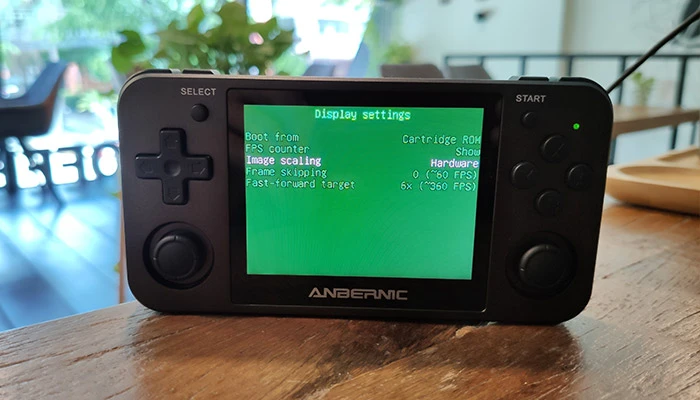
So I tried everything setting in ReGBA settings by pressing the 'power button' in-game and entering 'Display Settings' then 'Image Scaling'.
- None - Looks great. But only half of the display used.
- Hardware - Blurry / Soft
- Aspect & Full Linear - Blurry / Soft
- Full Scan - - Blurry / Soft
- Aspect Bilinear - Blurry / Soft
- Aspect & Full sub-pixel - Blurry / Soft
And got nothing... I couldn't fix the issue at all. The only way to get the GBA games pixel perfect on this retro handheld was to use the 'None' option which adds a GBA frame around the edge making the playable area half the size.
Blurry reGBA - The Solution
It turns out that reGBA automatically adds a pretty strong default sharpness every time you load it up. To change the sharpness on your RG350M, you hold the 'Power' button and the use 'Up & Down' on the DPad.
Turn the sharpness off completely: Hold with Power + Down.
As for the 'Image Scaling' setting, leave this set to 'Hardware'.
Now bask in the glory of perfectly sharp, pixel-perfect scaled Game Boy Advance games!
Yeah, I know it's not the original 240x160 resolution, but it looks great scaled up on the RG350M's larger 3.5" IPS panel!
And before you ask, no. I've not got a clue how you get the ReGBA emulator to save the sharpness level. Comment below if you have the answer, but for now, you have to follow these quick & simple steps each time you start reGBA.
Leave a comment if this helped you and share your top RG350M tips below! : )
Comment submitted successfully! It will appear once approved.
Submission failed. Please verify the Captcha and try again.
Comment if this helped you out and feel free to share any of your other Anbernic RG350M Tips!